Every week something new comes out in AI. A new model, a new tool, somebody saying it changes everything. I get a couple of really good AI newsletters every day, and they're a compilation of everything going on across all the companies.
It's a lot to go through if you read it every single day. It was overwhelming, and honestly exhausting. I'd read it, save it, and still feel behind.
So I stopped. Now I archive them as they come in, and I give myself one read a week.
What I do instead
Once a week, my AI reads every one of them and gives me one short page. I like to read it on Fridays, at the end of the week. It takes me about ten minutes.
It knows about me, the work I do and the tools I use (for me that's Claude, Lovable and Airtable), so it keeps only what touches them and skips the rest.
Instead of keeping up with it all as it happens, I can wait for more information to come out and read it once a week.
What this looks like in my week
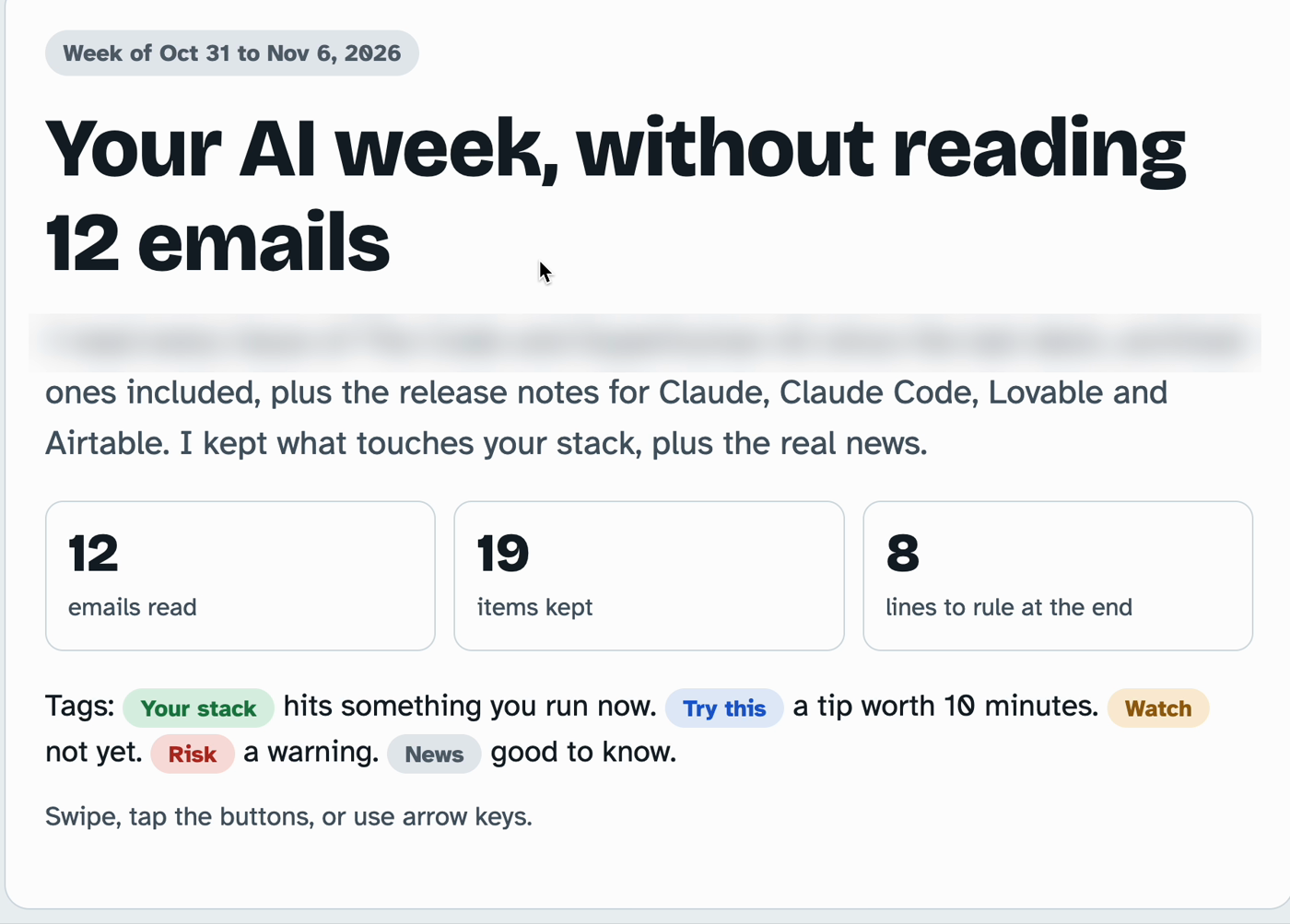
My page for the first week of November. Everything else stayed archived.
Last week it read 12 emails and kept 19 items. A few of them: Claude changed some of its plan names and limits, Lovable changed some things, and there was new data on the different thinking levels in Claude. At the end there's a short checklist of what I need to look at.
That's the whole point. I'm still in the know. I'm just not chasing it.
Start this week (Beginner, 10 minutes)
You don't need to connect anything to start. Copy and paste works.
1. Give the newsletters one home. In Gmail, open one of your AI newsletters, click the three dots and pick "Filter messages like these." Click "Create filter," then tick Skip the Inbox (Archive it) and Apply the label, and make a new label called "AI reading." Do the same for each newsletter. (Outlook calls these rules: right-click the email, Rules, "Always move messages from this sender" to a folder.)
They still arrive. They just stop showing up in front of you all day.
2. Pick your day. One day, one time. Friday works for me. Put a 15-minute reminder on your calendar.
3. On that day, paste them in. Open the "AI reading" label, copy the newsletters into a chat (or attach them), and add this:
Paste this:
Here are this week's AI newsletters. I use [the tools you use] for [your main work]. Give me one short page: only what touches those tools, and anything worth trying this week. For each item, one line on what changed and whether I need to do anything. Skip everything else. End with the one thing worth trying.
4. Read the page, then let the rest go. If something matters, it will be on the page.
Let it read your email (Intermediate, 15 minutes)
Copying newsletters gets old fast. Most AI tools can now read your email for you once you connect it.
1. Connect your email. In Claude, connect Gmail under Settings, then Connectors. ChatGPT has a Gmail connector on paid plans that can search, read and summarize your mail. If you use Gmail with Gemini, you can ask it from the Ask Gemini button at the top right of Gmail. In Outlook at work, Copilot can do the same.
2. Tell it who you are, once. The page gets better when it knows your work. Save this as a note it reads (your six-questions note from habit 1 is a good home):
Paste this:
When I ask for my AI week, here's what matters: I do [your work]. I use [your tools]. I care about changes that affect my cost, my limits, or how I work. I don't care about gadgets, funding news, or tools I don't use.
3. Ask it the same way every week.
Paste this:
Read the emails in my "AI reading" label from the last 7 days. Give me one short page. Tag each item: Your stack (hits something I use now), Try this (a tip worth 10 minutes), Watch (not yet), Risk (a warning), or News (good to know). Skip everything else. At the end, list what you skipped in one line, so I know it was read.
The "what you skipped" line matters. It's how you trust the page without opening the pile.
Make it run itself (Advanced, 20 minutes)
1. Put it on a schedule. Claude and ChatGPT can both run a saved ask on a schedule, daily or weekly. Set it for the morning of your reading day, so the page is waiting for you.
2. Ask for a page you can keep. A short deck or a one-page document is easier to read on your phone than a long chat answer, and you can look back at old weeks.
3. End with a checklist. Have it finish with the few things you actually need to decide or try. That's the part you act on. The rest is just knowing.
Paste this:
Every Friday at 7 AM, read my "AI reading" label from the last 7 days and build me a one-page summary using my notes on what matters. End with a checklist of no more than 5 things I need to decide or try this week.
It isn't just for AI
You can do this for anything you want to keep up on. Same setup: one label, one day, one page.
Paste this:
Here's what I've saved this week about [your topic]. I care about [what matters to you]. Give me one short page with only what changes something for me, and a checklist of what to do about it.
Common mistakes
Reading the newsletters anyway. The filter only works if you stop opening the folder during the week. Trust the page.
Asking for "a summary." A summary of everything is just the pile again, shorter. Tell it your tools and your work, and ask what touches them.
Skipping the "what you skipped" line. Without it, you'll wonder what got left out and go back to reading the pile.
Questions people ask
How do I keep up with AI without reading everything?
Can AI read my newsletters for me?
Is it safe to connect my email?
Any tool
This works the same in ChatGPT, Gemini, Copilot or Claude. The ask is just words. Only how it reaches your email differs:
- Claude: connect Gmail under Settings, then Connectors. Scheduled tasks can run it weekly.
- ChatGPT: the Gmail connector on paid plans searches, reads and summarizes your mail, and Scheduled tasks can run it on a timer.
- Gemini: open Gmail and click Ask Gemini at the top right.
- Copilot at work: ask from inside Outlook.
Checked on Nov 12, 2026. They change; if yours looks different, search the app's help for "connect Gmail" or "scheduled tasks."
It's a marathon, not a sprint. One step today.